Showing posts with label android 6.0 update. Show all posts

4.01.2016

Ten Android 6.0 hidden features


The latest generation of Google Android 6.0 Marshmallow system is slowly promotion between different brands and operators. For example, the Samsung Galaxy S7 preinstalled Android 6.0, and such as HTC, Huawei and Sony and other brands are also gradually push for the equipment 6.0 Marshmallow. In addition, Android 6.0 also applies to all Moto X phone.

In Android 6.0 Marshmallow become ubiquitous before, let us look at what it all nice feature that contains these features will make your life easier.

1, Check the battery level


If you always worry about the phone's battery will be consumed before charging it with Android 6.0, you do not need to worry about. Android 6.0 Marshmallow able to provide a new range of battery statistics give you information about the remaining capacity of more accurate description, including how long it takes to be able to 100% charge, and how long you can use the remaining battery time.

Go to Settings> battery, you can view statistics.

2, Extends battery life by 30%


If your battery is about to run out, then you can try to use this shortcut, the new Android Marshmallow function to extend the battery life by 30%.

You want to activate a longer battery life, you need to activate the power saving mode. Go to Settings> Battery, click the menu to open it. This way, when your phone is idle time, then it will enter the "deep sleep", the background application will reduce activities.

3, Rapid access to relevant information by tapping the Home key


When you're in a conversation among some of the information they need to quickly find the time, you have to choose between instant messaging applications and browser switch, very annoying. For example, when you are with friends send a message similar to the cinema to discuss things, maybe you need to keep between mail and browser to view the video details handover, very troublesome.

Android 6.0 Marshmallow is Now on Tap function will help you solve this puzzle, it will be based on your understanding of the text, to provide relevant information and links for you. Now on Tap want to get information, you simply click and hold the Home button, and it will pop up with information related to your session.

4, Application permissions have more control

In Android 6.0 Marshmallow, Google added a new feature that allows users assigned specific permissions for the application, the benefits of doing so is to allow users to better protect their privacy. In Marshmallow, the application will be needed to obtain a permission request, the user can choose whether to give it permission to do so. For example, when you first want to take a picture within the WhatsApp application time, WhatsApp will require access to your camera.

Meanwhile, Marshmallow also allows you to easily undo a single authority, which means that before you can easily revoke permission given to an application. You want to delete or add application permissions, you can go to Settings> Applications> Select application> Permissions> add or remove permissions.

5, The backup unlimited number of pictures


Google Photos app for the latest update allows users to back up and store an unlimited amount of photos. Enter backup and synchronization> Backup to open, Photos application also has a free editing tool.

6, Improved copy and paste functions

Google draws some inspiration from Apple in the Android 6.0 Marshmallow, the increase for the new copy and paste functionality. When you highlight a portion of text, cut, copy, and share options will appear in this part of the text above, rather than at the top of the screen.

7, In a safe place automatically unlock

If you always need to enter a password to unlock the phone annoyed, especially when you're alone at home, then this feature will be very suitable for you. In Android 6.0, you will be able to tell your phone what you trust position, as long as you are in the position of the body, you do not need to use a password or unlock pattern to open the phone.

Want to turn on this feature, you can go to Settings> Security> Smart Lock> Trusted sites, you can also set a credible and trusted voice equipment.

8, Did not unlock the phone for voice search


Has a voice search button on your Android 6.0 lock screen, tap the microphone icon, you can ask your Android phone to call a friend to find something or write information. Also, when you encounter translation problems, you can quickly tap the microphone icon and ask Google translate for you.

9, Forget where your phone? Google it

I can not remember where to put your phone yet? You can be a desktop, tablet or laptop in the Google search for "find my phone" and it will tell you where the phone.

Want to activate this feature, you need an Android Device Manager, you can find online and download the application. In the Manager, you will need to add a Google Account to your phone (if your phone is stolen confirm, then you can also set the phone to lock and erase data therein), and then in the Android Device Manager On "View device location" option.

10, Access your phone via a friend's mobile phone

If you forget where your phone is lost, you can still access your phone to the message through a friend's Android phone, photos and other information, just as a "guest user" Log on to. Of course, before that, you need to add this to a friend can share your device list.

Related Articles:

Recover Lost Data from Sony after Android 6.0 Update

2.18.2016

Samsung S6 Android 6.0 upgrades exposure with better built-in browser

[Abstract] The new system will bring about a new Internet 4.0 browser to join a new private browsing mode, users can use the new browser selection will not save any history, data, Cookies.


While Samsung said it would soon for the Galaxy S6 and Galaxy S6 Edge released Android Marshmallow update, but the new firmware is still nowhere to be found. And in addition to the two flagship, many other Samsung device users are also waiting for the same update.

Samsung's Android 6.0 Marshmallow update also accompanied by new TouchWiz interface, Samsung today introduced the Galaxy device after upgrading Android 6.0 will get those new features. (Recover Samsung Data after Android 6.0 Update)

First, the new system will bring about a new Internet 4.0 browser, though many users prefer to use Chrome, but the system is still the same built-in browser worthy choice. In addition, the new browser will bring a new private browsing mode, users can use this new browser will not save any selection history data, Cookies, but you can still save a bookmark. And these data are stored in a separate space, and protected by KNOX.


In addition, the automatic logon security feature enabled, when the page is set to automatically log on, each time you log need to verify the fingerprint information.

Cross App features are also worth mentioning in this service allows users to easily browse back-office applications, such as when there is a message, or e-mail contains a link, the user can pop-up display linked pages through gestures, while requiring only lightly brush can close pop-up box.


Although Cross App function and can be connected to interactive media, but currently only supports TouchWiz interface that comes with the application, including SMS, email and web capabilities.

In addition, the new updates have brought Marshmallow Gear VR device better support for the new power-saving mode, MIDI protocol, and local access control and other applications.

Related Articles:

How to Recover Data Contacts from Android after Update


1.27.2016

Android 6.0 Update- Recover Samsung Photos, Videos, SMS

After update your Android device, data loss may occur because of system formatting, forgetting to back up, even phone system crash when system updating. Then, you may be frustrated to how to recover samsung lost photos, videos after Android 6.0 OS Update.In additional,you also want to restore samsung lost data after Android 6.0 OS upgrading, including calendar, contacts, videos, photos, apps, call history, notes and more, so Android data recovery is likely to be a trouble after happiness of getting update.


Sometimes, we may need to do android system update to our mobile phone such as Galaxy S3, S4, S5, or S6 due to different reasons. No matter for what reasons, after you do the android system update, all you data on the device are erased. So, what if you forget to backup some important data before you perform the android 6.0 update? This article will tell you how to recover data after android 6.0 update Samsung Galaxy phones.

Is it any method to recover those lost data from your android samsung phone after android 6.0 update?

Last night, I have update my samsung galaxy s6 to android 6.0, and after this, I found that some photos, videos have got lost on my samsung galaxy s6, can I get back lost photos and videos from my samsung galaxy s6 after android 6.0 update?

Here, we recommend you the third-party Android Data Recovery software, just follow the next easy steps to recover your lost contacts, videos, photos, calendar, apps, whatsapp data, notes, text messages from samsung galaxy s3/s4/s5/s6/edge/note/A7/A8/A9 after android 6.0 update.

First, please download the free trail version and have a try:


Easy use to Recover lost Data from Samsung After Android Update:

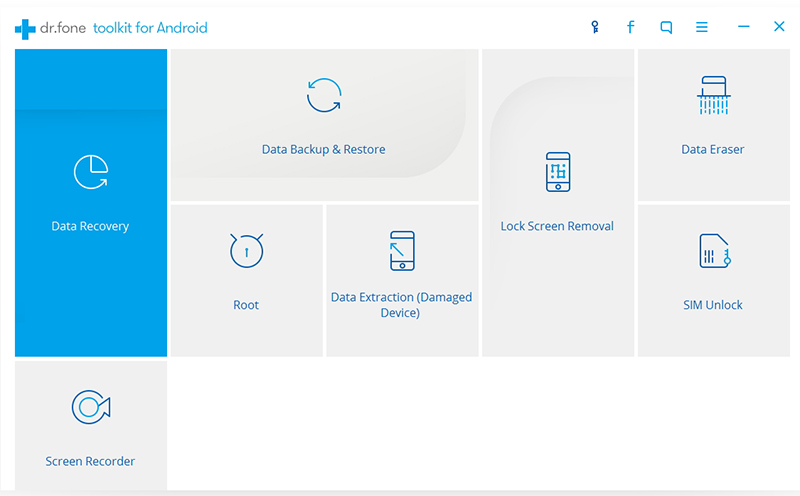
Step 1: Download, install the program and connect your samsung galaxy phone to the computer via USB cable.


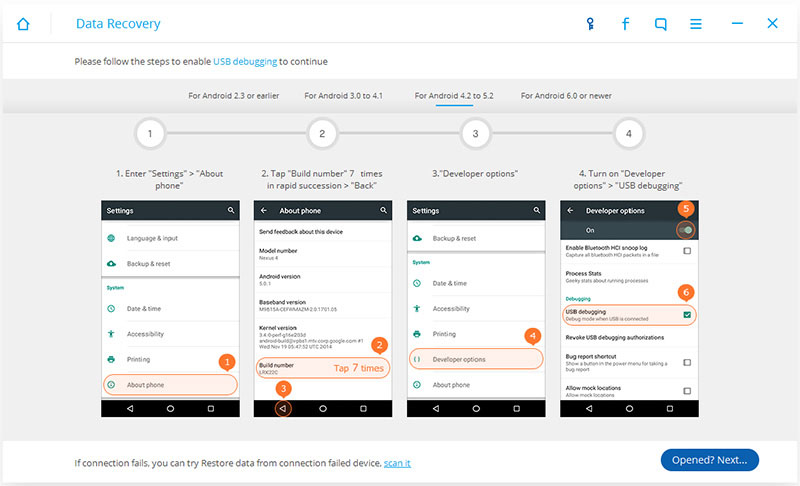
Step 2 Enable USB debugging on your Samsung Galaxy

Once connect your Samsung to the computer, please choose the right way to open USB debugging follow below steps:
1) For Android 5.1: Enter “Settings” > Click “About Phone” > Tap “Build number” for several times until getting a note “You are under developer mode” > Back to “Settings” > Click “Developer options” > Check “USB debugging”
2) For Android 4.2 or 5.0: Enter “Settings” > Click “About Phone” > Tap “Build number” for several times until getting a note “You are under developer mode” > Back to “Settings” > Click “Developer options” > Check “USB debugging”
3) For Android 4.2 or earlier: Enter “Settings” > Click “Developer options” > Check “USB debugging”


Step3 Start to Analyze Your Samsung Galaxy phone

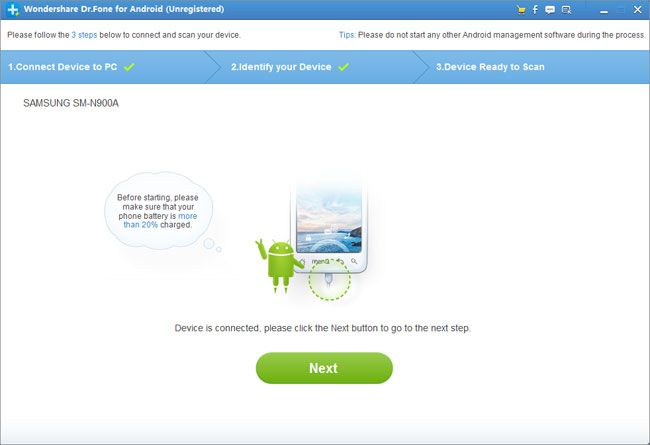
In this step, you can click the green button “Next” to begin to analyze the data on your Samsung device, including contacts, text messages, photos, videos and more.


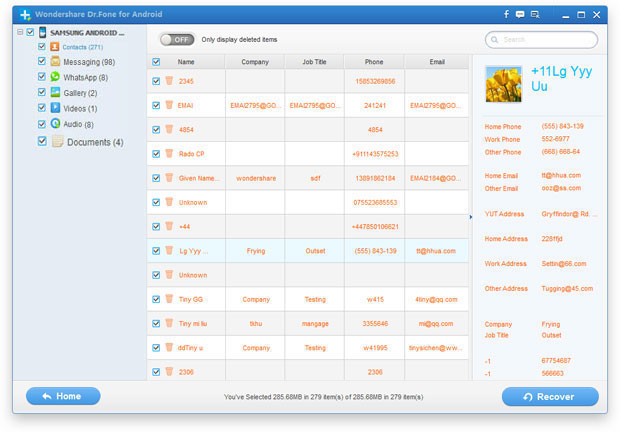
Step4 Preview and Retrieve lost photos videos from Samsung Galaxy after android update

Preview and mark photos and videos you want to click “recover”. All the steps are completed and you need to wait for a moment before the app saves them on your computer.


More info:

Retrieve Lost Calendar Contacts After Update Android Samsung

11.27.2015

Recover Lost Data Contacts from Samsung after Android 7.0/Android 6.0 Update


But, when the android Samsung users updating their operating to the new android 7.0 Nougat, maybe many problem will appear at the same time, many users may found that any data including Samsung contacts, text messages, notes, calendar, pictures, videos and more got lost after android 7.0 or android 6.0 upgrade. So, is there any method to restore those lost data contacts from android Samsung after android 7.0 update? Can i retrieve lost contacts from my Samsung after update to android 6.0?

Don't worry about it, this article is to tell you how to solve the problem lost any data from android mobile phone when upgrade to android 7.0/6.0.

Recover Android Samsung Data, is specially designed for recover lost data or contacts from android phone like Samsung, LG, HTC, Huawei, Sony, ZTE, etc. It will extract lost contacts directly from your device and you don’t need to input your phone numbers one by one again. In addition, messages, videos, music, and other file types are also can be retrieved with this Android Data Recovery tool.

Software Free Download Button:


Easy Way to Recover Lost Contacts from Android Samsung after Android 7.0 Update:

Step 1: Install and luanch the Android Data Recovery

After download the program, install and run it on your computer. Then you will see it’s primary window to ask you to connect your Android device to PC via USB cable.


Step 2.Enable USB Debugging on android Samsung phone

Android data recovery tool will also prompt you to enable USB debugging before you can use it to recover Contacts from your android Samsung Phones. Different Android versions may differ in the appearance or settings of this option.


Step 3: Analyze and Scan your android phone or Samsung lost data contacts.

After your android or Samsung phone is successfully detected by the program, make sure that your phone battery is more than 20% to enable the follow steps. Then click “Start” button to let the program analyze the file on your device.


After the program finish analyzing process, it will prompt you turn back to your device again to accept and tap on the “Allow” button to let the program scan your phone for lost messages, contacts, photos and video on your Samsung phone.


Step 4. Preview and recover lost contacts from android Samsung phone

After analysis, the software will list all of the contacts previously deleted or lost on the left menu bar. You can preview each item and select those lost contacts you want to recover.


More Related Articles:

How to Recover Lost Photos after Galaxy S6 Update